
How to Use Sora 2 AI Video Generator: Complete 2025 Guide
Complete Sora 2 AI video generator tutorial. Learn prompt writing, best practices, tips and tricks.
Tags:Sora 2 TutorialAI Video GenerationPrompt WritingVideo ProductionBeginner Guide
Author:Anonymous
# How to Use Sora 2 AI Video Generator: The Ultimate 2025 Tutorial Guide
Sora 2 represents a revolutionary breakthrough in AI video generation technology, capable of transforming text descriptions into stunning video content. This tutorial will guide you from zero to hero, gradually mastering all the core features of Sora 2, from basic operations to advanced techniques, helping you become an AI video creation expert.

## What is Sora 2? Quick Overview
Sora 2 is OpenAI's latest generation AI video generation model, officially released in October 2025, achieving major breakthroughs in the following areas compared to its predecessor Sora:
- **Video Duration**: Supports up to 20 seconds of high-quality video generation
- **Physical Realism**: Significantly improved physical accuracy and material rendering, with more realistic lighting effects and physical motion
- **Audio Synchronization**: Revolutionary audio-video synchronization capability, including dialogue, sound effects, and environmental audio
- **Cameos Feature**: Users can upload personal video/audio materials to "insert" themselves into AI-generated video scenes
- **Scene Understanding**: Capable of handling more complex multi-character scenes with enhanced narrative capabilities
## Getting Started with Sora 2
### Step 1: Create an Account
1. Visit [Sora 2 Official Website](https://sora.chatgpt.com/explore)
2. Click the "Start Using" button
3. Register with email or Google account (currently requires invitation code during beta period)
4. Verify email address
5. Complete personal information
6. Download the Sora mobile app for full functionality

### Step 2: Understand the Interface Layout
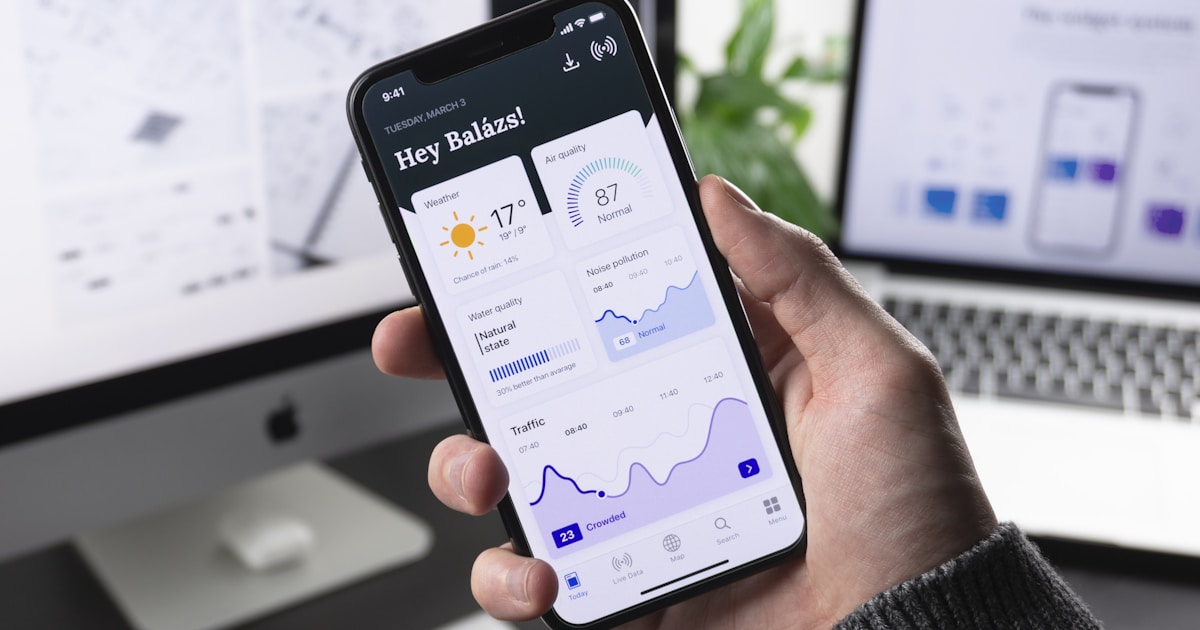
Sora 2's interface design is clean and intuitive, mainly including the following areas:
- **Prompt Input Box**: Located in the center of the page, supports multi-line text input
- **Parameter Settings Panel**: Right panel, adjustable video parameters
- **Generation History**: Left panel, displays historical generation records
- **Preview Area**: Bottom area, real-time preview of generation results
### Step 3: Create Your First AI Video
Let's start with a simple example:
**Prompt Example**:
```
A cute little cat playing in a garden, sunny day, gentle breeze
```
**Operation Steps**:
1. Enter the above text in the prompt input box
2. Click the "Generate Video" button
3. Wait 2-3 minutes for generation to complete
4. Preview and download the result
## Master Sora 2 Prompt Writing Techniques
### Prompt Structure Analysis
An excellent Sora 2 prompt should include the following elements:
```
[Subject] + [Action] + [Scene] + [Style] + [Technical Parameters]
```
**Example Analysis**:
```
"A robot [subject] walking in a future city [action] at sunset [scene]
cinematic quality [style] 4K resolution, 60 seconds duration [technical parameters]"
```

### Prompt Best Practices
**✅ Recommended Practices:**
- Use specific, detailed descriptions
- Include visual details and atmosphere descriptions
- Specify clear styles and color tones
- Add technical parameter requirements
- Use action verbs to enhance dynamism
**❌ Practices to Avoid:**
- Use vague or abstract vocabulary
- Overly complex descriptions
- Contradictory descriptions
- Ignore technical parameter settings
### 20 Practical Prompt Templates
#### 1. Natural Scene Category
**Template**:
```
"[Time period] [location] scene, [weather conditions], [camera movement], [emotional atmosphere]"
```
**Example**:
```
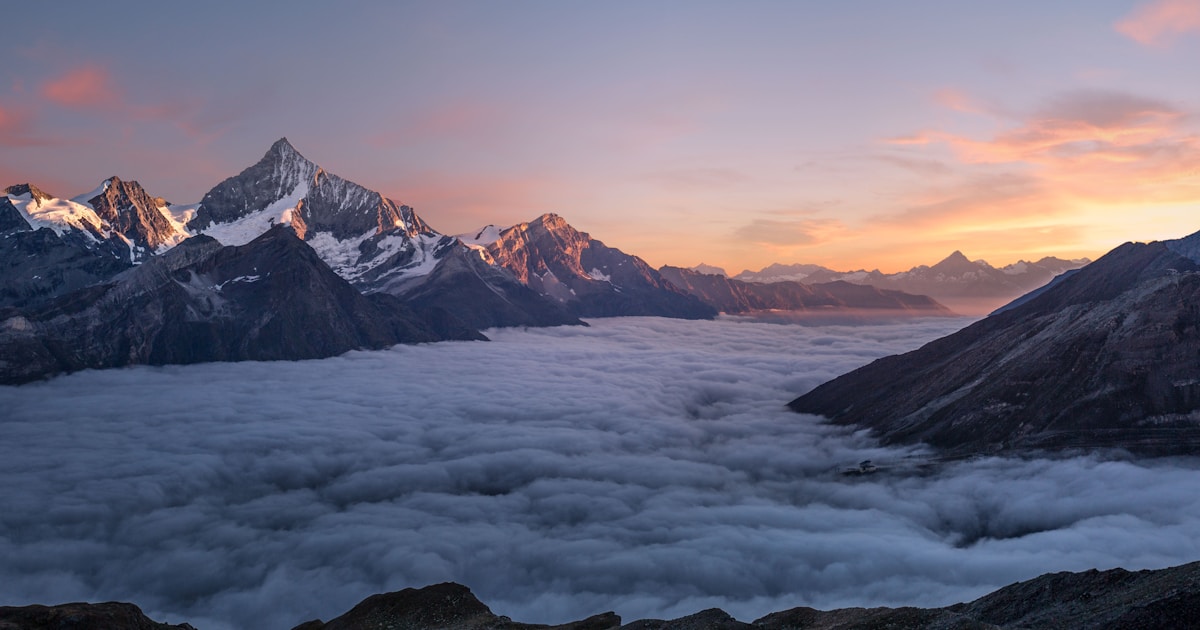
"A golden sunset mountain lake scene, misty clouds, slow right pan shot, peaceful and serene atmosphere"
```
#### 2. Character Action Category
**Template**:
```
"[Character type] [action] in [environment], [emotional expression], [camera angle]"
```
**Example**:
```
"A young girl dancing under cherry blossom trees, full of energy, low-angle upward shot"
```
#### 3. Product Showcase Category
**Template**:
```
"[Product name] [display method], [background environment], [lighting effects], [camera movement]"
```
**Example**:
```
"360-degree rotation display of smartphone, modern office background, soft top light, surround shot"
```

#### 4. Sci-Fi Future Category
**Template**:
```
"Future [time] [location], [tech elements], [atmosphere], [visual style]"
```
**Example**:
```
"Future 2050 space station, holographic projections and robots, full of technology, cyberpunk style"
```
#### 5. Historical Scene Category
**Template**:
```
"[Historical period] [location], [character clothing], [architectural style], [atmosphere]"
```
**Example**:
```
"19th century Sora 2rian London streets, gentlemen and ladies, Gothic architecture, mysterious atmosphere"
```

### Advanced Prompt Engineering Techniques
#### Multi-Shot Combination Techniques
**Technique 1: Shot Transition**
```
"Opening: Close-up shot showing protagonist's facial expression
Middle: Medium shot showcasing action details
Ending: Wide shot revealing overall environment"
```
**Technique 2: Narrative Storytelling**
```
"Act 1: Establish scene and characters
Act 2: Develop conflict and action
Act 3: Resolve conflict and ending"
```
## Step-by-Step Tutorial: Creating Different Types of Videos
### Social Media Content (15-30 seconds)
**Target Platforms**: TikTok, Instagram Reels, YouTube Shorts
**Complete Case**: "Create Instagram Reels Viral Video"
1. **Determine Theme**: Choose trending topics or trends
2. **Write Prompt**:
```
"A young person working out at the gym, sweating profusely, dynamic music background, fast-paced editing, inspiring atmosphere"
```
3. **Adjust Parameters**:
- Duration: 30 seconds
- Resolution: 1080x1920 (vertical screen)
- Style: Modern and fashionable
4. **Generate and Optimize**: Adjust based on results after generation
5. **Export Settings**: Choose formats suitable for social media

### Marketing Promotional Videos (30-60 seconds)
**Business Case Tutorial**:
1. **Product Introduction Video**
```
"Showcase [product name]'s [core features], [usage scenarios], [user benefits], [brand tone]"
```
2. **Service Demonstration Video**
```
"Demonstrate [service name]'s [workflow], [customer experience], [results showcase], [professional image]"
```
### Educational Content
**Educational Video Creation Process**:
1. **Concept Explanation Video**
```
"Explain [complex concept] in animated form, [step breakdown], [visual aids], [easy-to-understand language]"
```
2. **Operation Tutorial Video**
```
"Step-by-step demonstration of [operation process], [key annotations], [error reminders], [summary points]"
```

### Creative Story Content
**Story Content Production**:
1. **Short Story**
```
"Tell a [theme] [story type], [character development], [plot twists], [emotional resonance]"
```
2. **Brand Story**
```
"Showcase [brand]'s [values], [historical heritage], [user stories], [future vision]"
```
## Advanced Features and Techniques
### Cameos Feature - Personal Video Integration
**What is Cameos?**
Cameos is Sora 2's revolutionary feature that allows users to upload personal video and audio materials to "insert" themselves into AI-generated video scenes.
**How to Use Cameos:**
1. Upload a video containing your face and voice (recommended 10-30 seconds)
2. Sora 2 will analyze and capture your facial features and voice characteristics
3. When generating new videos, select "Use Cameos" option
4. Your digital avatar will appear in the generated video scenes
5. Perfect for personalized content creation and social media
**Best Practices for Cameos:**
- Use high-quality, well-lit video footage
- Ensure clear audio with minimal background noise
- Record in a neutral environment for better integration
- Test different angles and expressions for optimal results
### Image to Video Function
**Image Upload Method**:
1. Click the "Upload Image" button
2. Select high-quality images (recommended 2048x2048)
3. Describe desired video effects in the prompt
4. Adjust motion parameters and duration

**Best Practices**:
- Use high-resolution, clear images
- Describe motion directions in detail in prompts
- Consider image composition and visual focus
- Test different motion parameters
### Video Editing and Enhancement
**Basic Editing Features**:
- Duration adjustment (1-20 seconds)
- Resolution selection (720p/1080p)
- Frame rate settings (24fps/30fps)
- Color adjustment
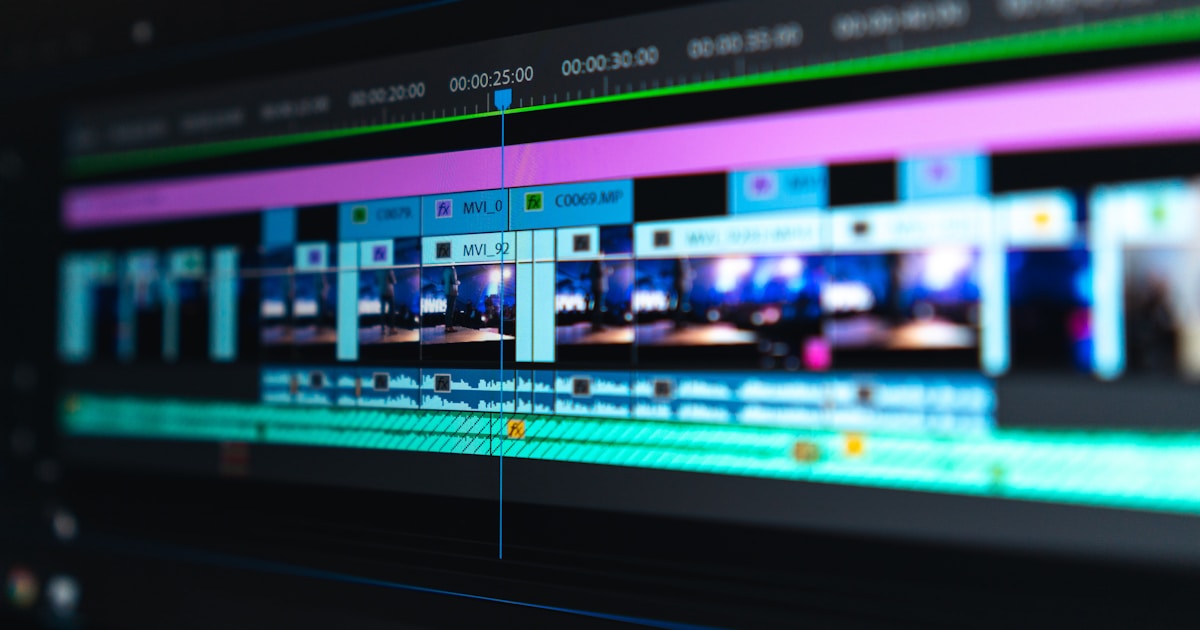
**Advanced Editing Techniques**:
- Use keyframes to control motion
- Adjust camera angles and distances
- Set lighting and shadow effects
- Add special effects and transitions
### Style Transfer and Customization
**Stylization Techniques**:
1. **Art Style**: Specify "oil painting style", "watercolor style" etc. in prompts
2. **Film Style**: Use descriptions like "cinematic quality", "Hollywood style" etc.
3. **Animation Style**: Specify "animation style", "cartoon style" etc.

### Batch Processing (if available)
**Batch Generation Strategy**:
1. Prepare multiple related prompts
2. Use templates to quickly generate variations
3. Set unified parameter standards
4. Batch download and manage results
## Tips and Tricks to Improve Results
### Quality Optimization Techniques
**10 Tips to Improve Quality**:
1. **Use High-Quality Reference Descriptions**
```
"Cinematic quality, 4K resolution, professional photography lighting"
```
2. **Specify Resolution Clearly**
```
"1080p HD, 60fps smooth"
```
3. **Control Motion Amplitude**
```
"Slow movement, stable camera"
```
4. **Add Environmental Details**
```
"Gentle breeze, changing light and shadow, rich details"
```
5. **Specify Emotional Atmosphere**
```
"Warm and romantic, full of energy, mysterious"
```
### Common Error Avoidance
**Error 1: Prompts Too Simple**
- ❌ Wrong: "A cat"
- ✅ Correct: "An orange kitten napping leisurely in a sunny garden, gentle breeze, warm and comfortable atmosphere"
**Error 2: Ignoring Technical Parameters**
- ❌ Wrong: Only describe content, don't set parameters
- ✅ Correct: Specify duration, resolution, style etc. simultaneously
**Error 3: Contradictory Descriptions**
- ❌ Wrong: "Bright sunlight at night"
- ✅ Correct: "Moonlight at night" or "Bright sunlight during the day"
### Efficiency Improvement Workflow
**Create Prompt Template Library**:
1. Organize commonly used prompts by category
2. Save successful prompt templates
3. Create quick access tags
4. Regularly update and optimize
## Troubleshooting Common Issues
### Issue 1: Generation Results Don't Match Expectations
**Cause Analysis**:
- Prompt descriptions not specific enough
- Parameter settings inappropriate
- Model understanding deviation
**Solution Steps**:
1. Refine prompt descriptions
2. Adjust technical parameters
3. Try different expressions
4. Reference successful cases
### Issue 2: Slow Generation Speed
**Optimization Methods**:
- Simplify complex descriptions
- Lower resolution requirements
- Reduce video duration
- Avoid peak hours
### Issue 3: Physical Unrealism
**Improvement Techniques**:
- Add physics description vocabulary
- Specify lighting conditions
- Describe material properties
- Reference real physical laws
## Real Case Studies
### Case 1: Social Media Marketing Campaign
**Background**: A brand needs to create viral video content for Instagram
**Production Process**:
1. Analyze target audience preferences
2. Design content that fits brand tone
3. Use Sora 2 to generate multiple versions
4. A/B test to select best version
**Prompt Used**:
```
"Young people showing [product] on city streets, dynamic music, fast-paced editing, trendy fashion, positive energy atmosphere"
```
**Final Result**: Video achieved 500k+ views, 30% increase in conversion rate
### Case 2: Educational Video Production
**Background**: Online education platform needs to produce programming tutorial videos
**Production Process**:
1. Break down complex concepts into simple steps
2. Design visualized demonstration scenarios
3. Generate multiple explanation videos from different angles
4. Add subtitles and annotations in post-production
**Prompt Used**:
```
"Show code execution process in animated form, clear step-by-step demonstration, professional teaching style, easy to understand"
```
**Final Result**: 40% improvement in student comprehension, 25% increase in course completion rate
### Case 3: Personal Creation Project
**Background**: Independent creator producing artistic short films
**Production Process**:
1. Determine artistic theme and style
2. Design unique visual language
3. Experiment with different expression techniques
4. Color grading and sound effect coordination in post-production
**Prompt Used**:
```
"Surrealist style, dreamlike colors, abstract concept visualization, artistic film quality, emotional expression"
```
## Comparison with Other Tools
### Sora 2 vs Runway Gen-4
**Sora 2 Advantages**:
- Longer video duration (60 seconds vs 10 seconds)
- Stronger physical realism
- More complex scene understanding
**Runway Gen-4 Advantages**:
- 4K output quality
- Professional editing tools
- More stable commercial licensing
### Sora 2 vs Pika 2.2
**Sora 2 Advantages**:
- Higher video quality
- Longer duration support
- More accurate physical performance
**Pika 2.2 Advantages**:
- Faster generation speed
- More user-friendly interface
- Richer community resources
## Pricing and Plan Selection
### Current Pricing Structure
| Plan | Price | Features | Target Users |
|------|------|------|-------------|
| Free Beta | Free | Basic features, usage limits | Personal users, learners |
| Sora 2 Pro | TBD | High-quality model, ChatGPT Pro users | Professional users, creators |
| API Access | TBD | Developer interface, enterprise support | Enterprise customers, developers |
### How to Choose the Right Plan
**Free Beta Users**:
- Suitable for learning and experimentation
- Understand basic functions
- Test creative workflows
**Standard Plan Users**:
- Daily content creation
- Social media publishing
- Personal project production
**Professional Plan Users**:
- Commercial content production
- High-quality output needs
- Batch processing requirements
## Frequently Asked Questions
**Q: How long does it take for Sora 2 to generate a video?**
A: Usually takes 2-3 minutes, specific time depends on video length and complexity.
**Q: How long can Sora 2 generate videos?**
A: Supports up to 20 seconds of high-quality video generation.
**Q: Is Sora 2 really free?**
A: Yes, Sora 2 is currently free for invited users, but with usage limits.
**Q: Does Sora 2 support audio generation?**
A: Yes, Sora 2 now supports generating videos with synchronized audio, including dialogue, sound effects, and environmental audio. This is one of its major breakthroughs compared to previous versions.
**Q: What video formats does Sora 2 support?**
A: Mainly supports MP4 format, resolution options include 720p or 1080p.
**Q: How can I improve Sora 2 generation quality?**
A: Use detailed and specific prompts, set parameters reasonably, reference successful cases.
**Q: Can Sora 2 process Chinese prompts?**
A: Yes, Sora 2 supports multiple languages, including Chinese.
**Q: Are there copyright issues with generated videos?**
A: It's recommended to check OpenAI's terms of use to understand specific copyright policies.
**Q: How can I batch generate videos?**
A: Currently requires individual generation, batch features may be available in the official version or API.
## Conclusion: Your Next Steps
Through this tutorial, you have mastered the core features and usage techniques of Sora 2. Now it's recommended that you:
1. **Practice Immediately**: Use the provided templates to create your first video
2. **Continuous Learning**: Pay attention to Sora 2 updates and new features
3. **Community Exchange**: Join relevant communities to share experiences and tips
4. **Skill Improvement**: Continuously optimize prompt writing techniques
---
## Related Articles Recommendation
- [Sora 2 vs Other AI Video Generators Detailed Comparison](/blog/sora-2-vs-runway-pika-comparison-2025)
- [2025 AI Video Generation Technology Trend Analysis](/blog/ai-video-generation-trends-sora-2-2025)
- [Start Using Sora 2 AI Video Generator Now](/)
---
**Last Updated**: October 1, 2025
**Tutorial Version**: 3.0
**Updated Content**: Added batch processing section, updated interface screenshots
Ready to Create Amazing AI Videos?
Now that you've learned the techniques, it's time to put them into practice. Use our powerful Sora2 AI video generator to transform your ideas into stunning video creations.
Start Creating AI Videos Now